Connect → Continue
Use AxForge with Continue
Continue is an open-source assistant for VS Code:
chat, edits and an agent mode. It takes any OpenAI-compatible service as a model in its config.yaml,
with the key kept in a separate file.
- An AxForge API key. Get one (a minute).
- VS Code with the Continue extension (search Continue under Extensions). This guide was tried with Continue 2.0.0 in VS Code 1.141 on 2026-10-17.
Set it up
-
Open the configs
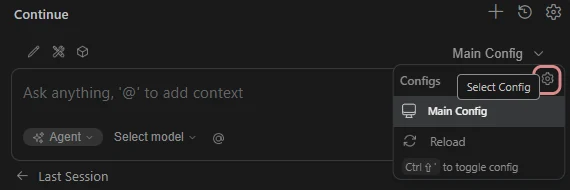
Open Continue from its icon in the side bar. Click Main Config above the message box, then the gear beside Configs.
-
Open config.yaml
On the Configs page, press the gear on Main Config. Continue opens its
config.yamlin the editor.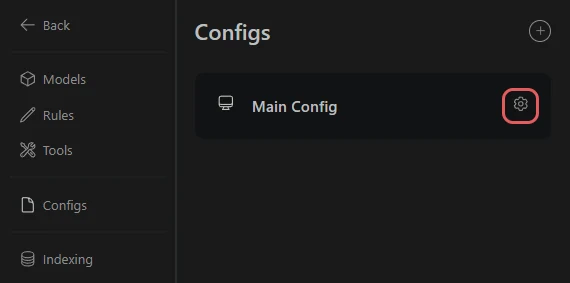
-
Add the models
Make the file this, and save:
name: Main Config
version: 1.0.0
schema: v1
models:
  - name: Qwen3.8 27B
    provider: openai
    model: qwen3.8-27b
    apiBase: https://api.axforge.ai/v1
    apiKey: ${{ secrets.AXFORGE_API_KEY }}
    roles: [chat, edit, apply]
    capabilities: [tool_use, image_input]
    defaultCompletionOptions:
      contextLength: 262144
  - name: GLM-5.3-Flash
    provider: openai
    model: glm-5.3-flash
    apiBase: https://api.axforge.ai/v1
    apiKey: ${{ secrets.AXFORGE_API_KEY }}
    roles: [chat, edit, apply]
    capabilities: [tool_use]
    defaultCompletionOptions:
      contextLength: 262144
  - name: MiMo-V2.6-Flash
    provider: openai
    model: mimo-v2.6-flash
    apiBase: https://api.axforge.ai/v1
    apiKey: ${{ secrets.AXFORGE_API_KEY }}
    roles: [chat, edit, apply]
    capabilities: [tool_use]
    defaultCompletionOptions:
      contextLength: 262144
capabilities: [tool_use]lets Agent mode use the models; Continue does not know our model names, so it would not turn that on by itself.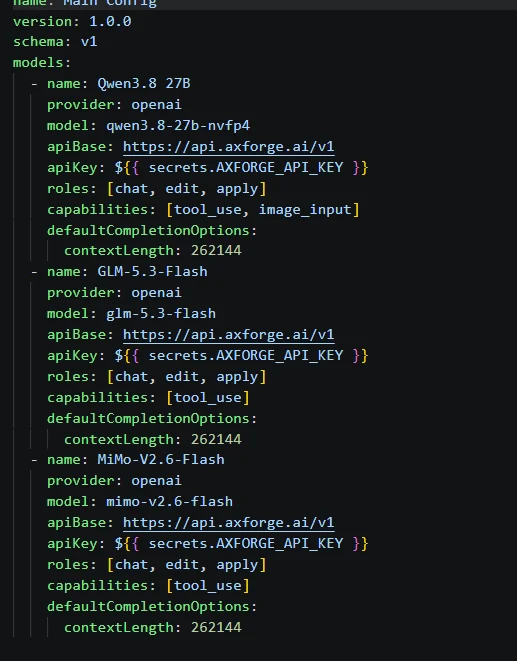
-
Put your key next to it
Create the file
~/.continue/.env(on Windows%USERPROFILE%\.continue\.env) with one line. Continue readssecrets.AXFORGE_API_KEYfrom it, so the key stays out ofconfig.yaml.AXFORGE_API_KEY=orx_live_your_key_here -
Pick the model
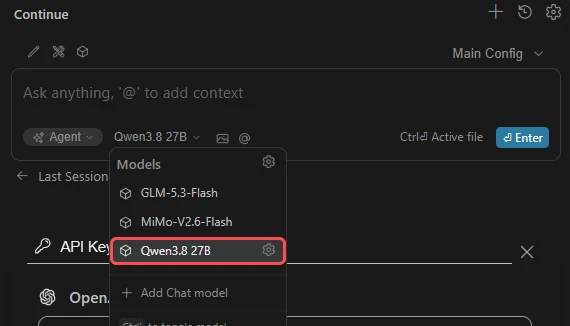
Click the model name under the message box and choose Qwen3.8 27B.
-
Give it a task
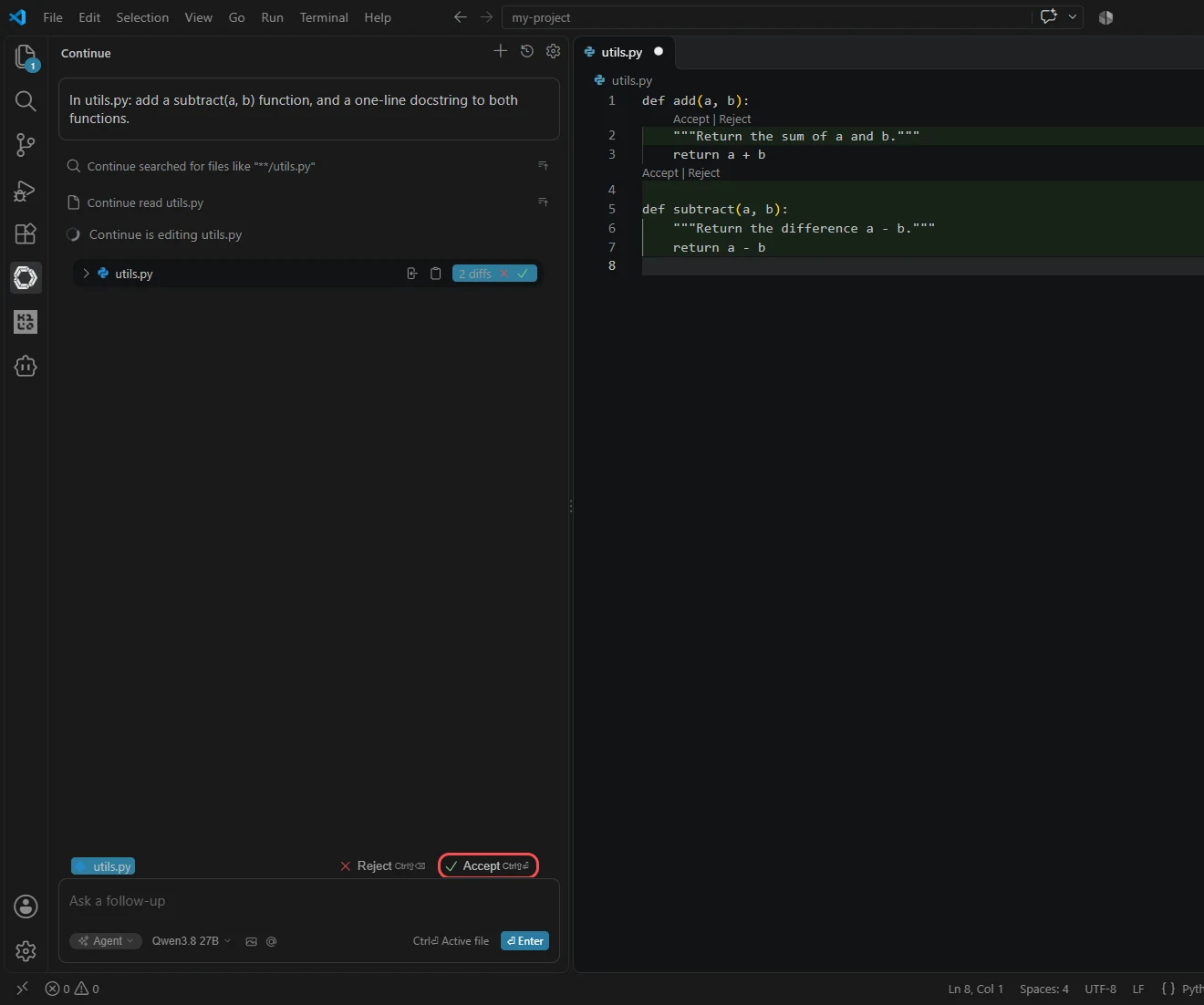
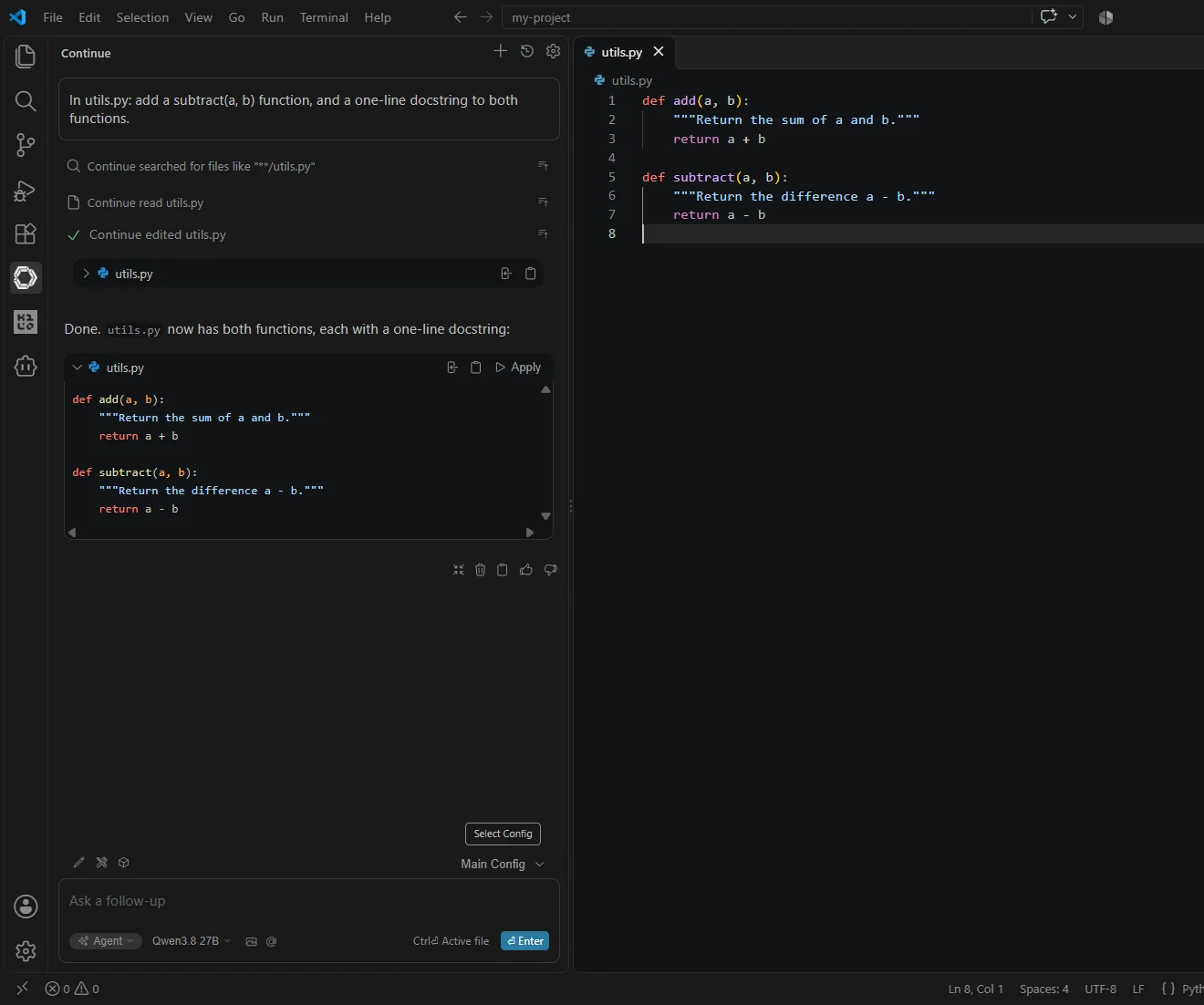
In Agent mode, ask in plain words. Continue shows its change as a diff in the file and asks: press Accept to keep it.
The settings
| Key in config.yaml | Value |
|---|---|
| provider | openai |
| apiBase | https://api.axforge.ai/v1 |
| apiKey | ${{ secrets.AXFORGE_API_KEY }}, from ~/.continue/.env |
| model | qwen3.8-27b, glm-5.3-flash, mimo-v2.6-flash |
| capabilities | tool_use (and image_input for qwen3.8-27b) |
| contextLength | 262144 |
Which model for what: qwen3.8-27b is the
everyday default and reads images, glm-5.3-flash thinks before it answers,
mimo-v2.6-flash is the fastest.
Check that it works
Our three models are in the menu under the message box and a task gets done. The calls show in the console under API Keys → Recent calls within a minute.
When it does not work
Not sure which it is? The connection doctor makes seven small
checks on your key and names the fix: irm https://dev.axforge.ai/assets/axforge-doctor.ps1 | iex in
PowerShell, curl -fsSL https://dev.axforge.ai/assets/axforge-doctor.sh | bash on macOS and Linux.
| What you see | What it means | Fix |
|---|---|---|
| Our models are not in the menu | the file was not saved, or its spaces moved | save it; copy the block as it is, YAML reads the indents |
| "Invalid API key. Create one at https://console.axforge.ai/keys." | Continue did not find the key, or it was refused | check ~/.continue/.env: one line, the name exactly AXFORGE_API_KEY, the key whole |
| Agent mode is not offered | the model has no tool_use | keep capabilities: [tool_use] on each model |
Test a call says in one click whether a problem is your key, your balance or us.