Connect → Open WebUI
Use AxForge with Open WebUI
Open WebUI is a chat app you host yourself. Add AxForge as one connection and our models appear in its model menu.
- An AxForge API key. Get one (a minute).
- Docker, to run Open WebUI. This guide was tried with Open WebUI 0.12.3 on 2026-10-17.
Set it up
-
Start Open WebUI
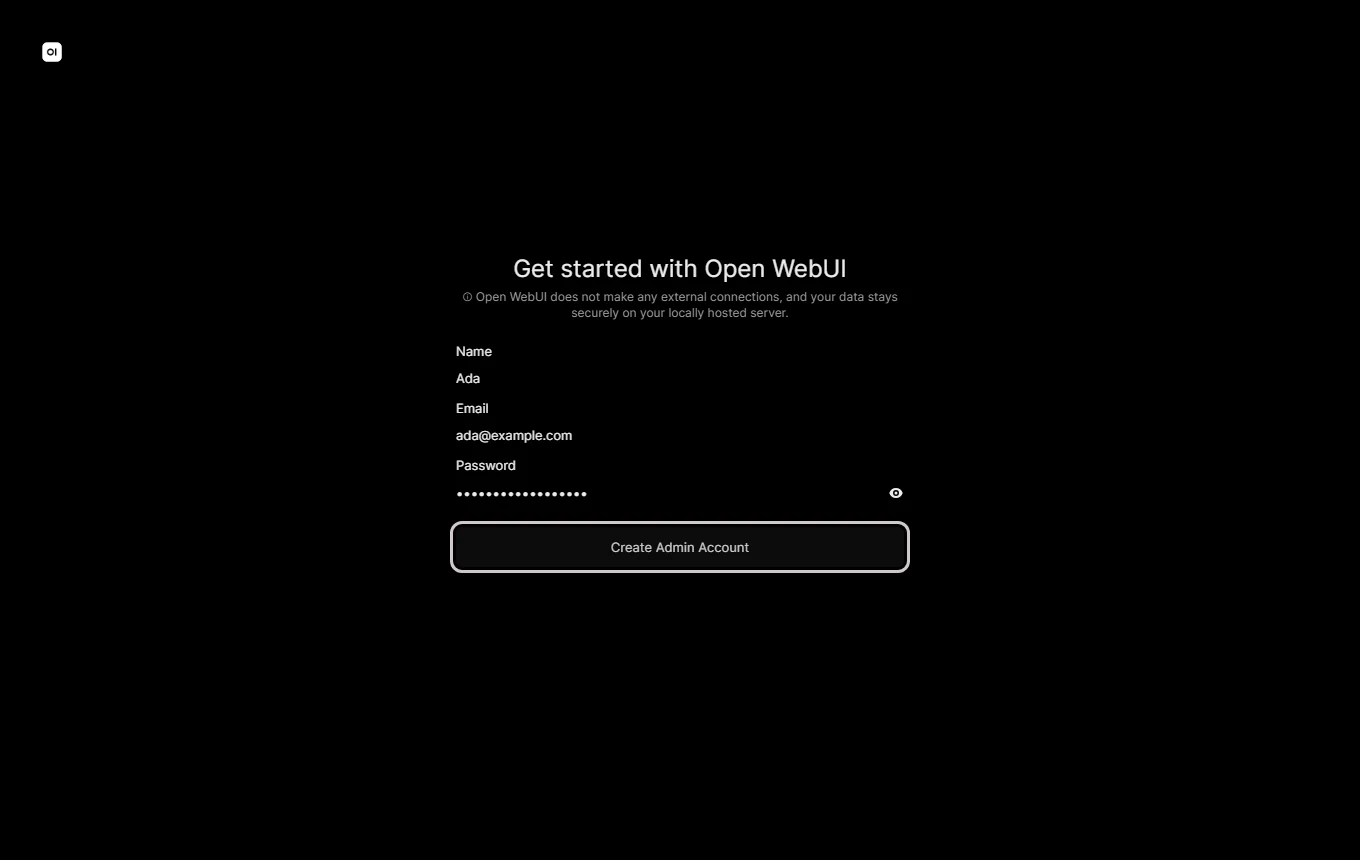
docker run -d -p 3000:8080 -v open-webui:/app/backend/data --name open-webui ghcr.io/open-webui/open-webui:mainOpen localhost:3000. The first visit asks for a name, an email and a password: that makes the admin account, on your machine only.
-
Open Connections
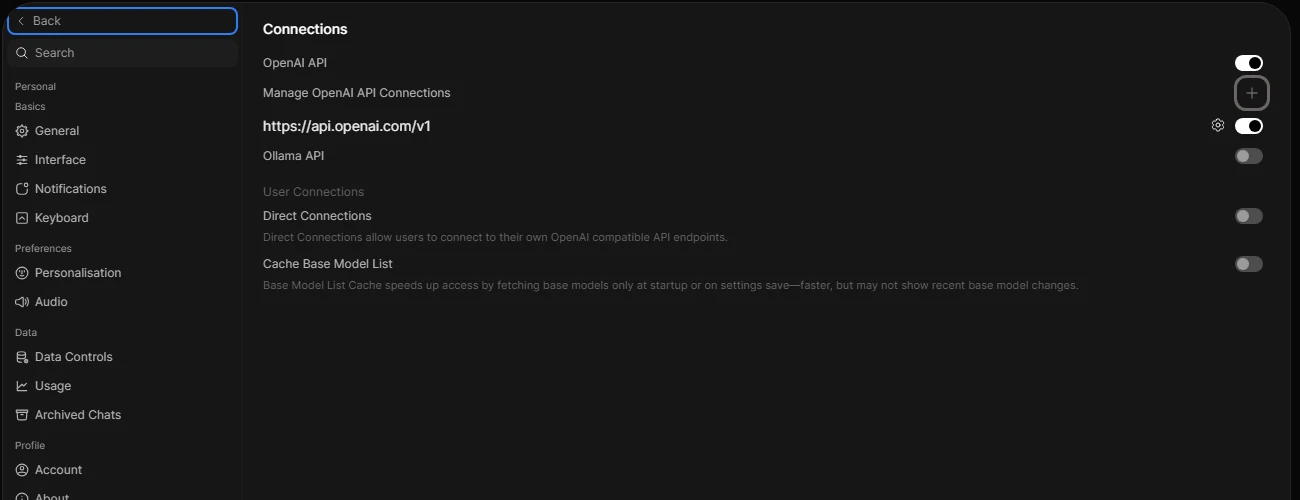
Click your name at the bottom left, then Admin Panel → Settings → Connections. Press the + beside Manage OpenAI API Connections.
-
Add AxForge
URL
https://api.axforge.ai/v1, your key in the field beside Bearer. Press the round arrows to test it: Server connection verified means the key works. Then Save, and Save again at the bottom of the page.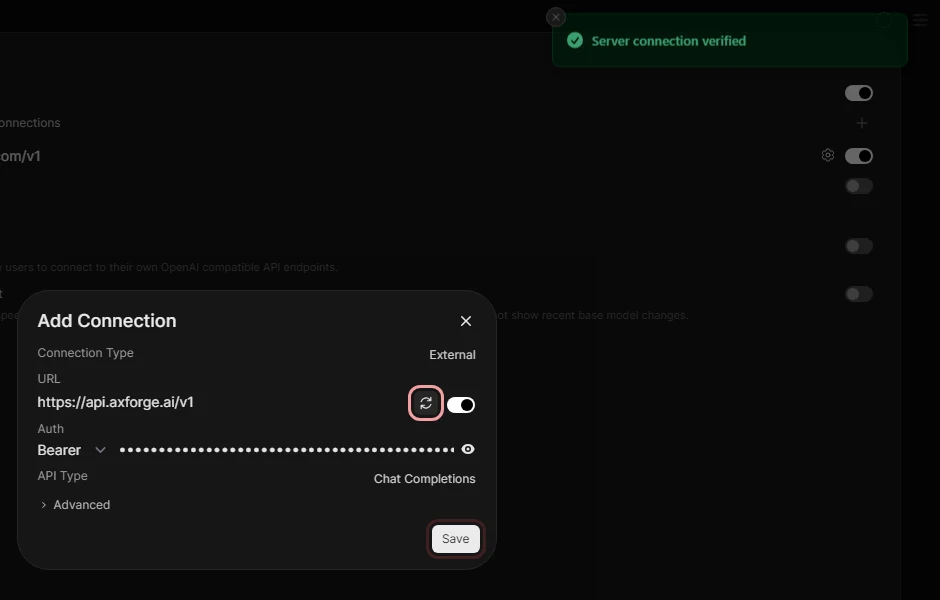
-
Pick a model
Start a new chat and open the model menu at the top. Type a name to find it:
qwen3.8-27b,glm-5.3-flashormimo-v2.6-flash. The menu also lists short aliases (such aschat, which is Qwen3.8 27B) and our image, speech and embedding models; those last are not chat models.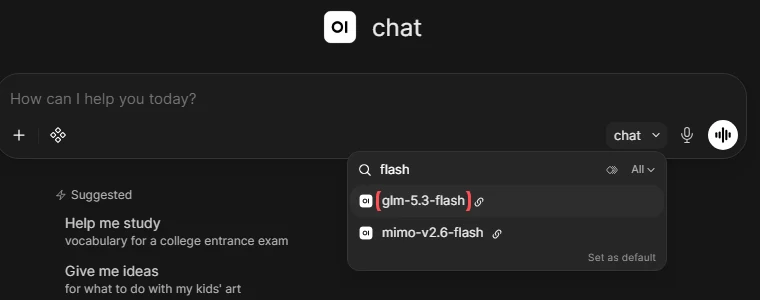
-
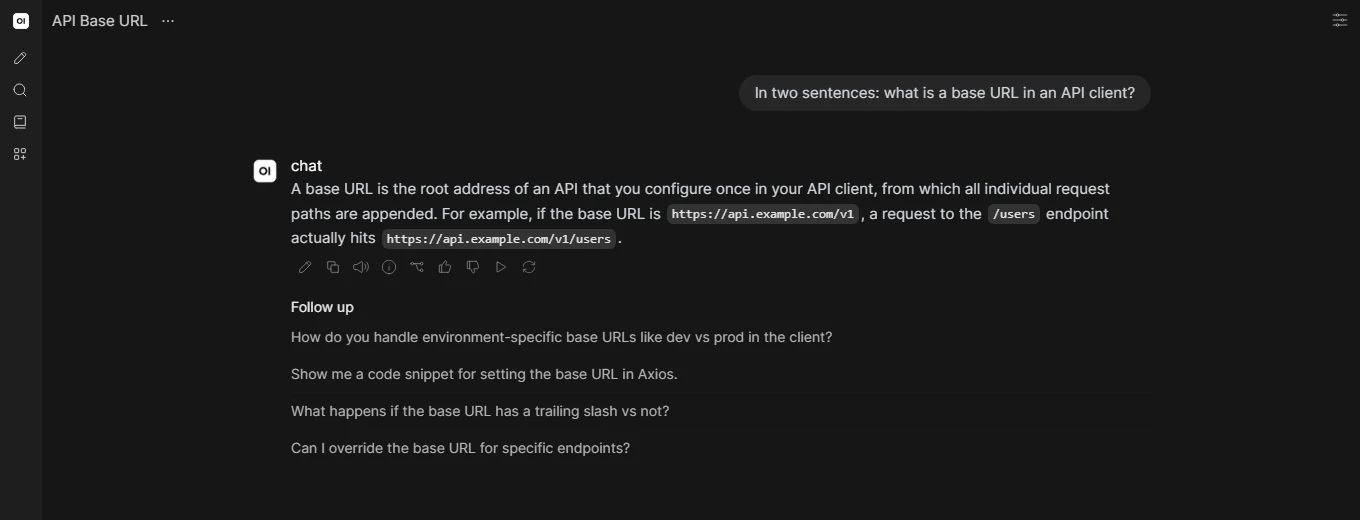
Ask something
The answer streams in, word by word.
The settings
| Field | Value |
|---|---|
| URL | https://api.axforge.ai/v1 |
| Auth | Bearer, your AxForge key |
| API Type | Chat Completions |
| Model | qwen3.8-27b, glm-5.3-flash, mimo-v2.6-flash |
Which model for what: qwen3.8-27b is
the everyday default and reads images, glm-5.3-flash thinks before it answers, mimo-v2.6-flash is
the fastest.
Or set it when you start it
Open WebUI can take the connection on its first start instead:
docker run -d -p 3000:8080 \
    -e OPENAI_API_BASE_URL=https://api.axforge.ai/v1 \
    -e OPENAI_API_KEY="$AXFORGE_API_KEY" \
    -v open-webui:/app/backend/data \
    --name open-webui ghcr.io/open-webui/open-webui:main
docker run -d -p 3000:8080 `
-e OPENAI_API_BASE_URL=https://api.axforge.ai/v1 `
-e OPENAI_API_KEY="$env:AXFORGE_API_KEY" `
-v open-webui:/app/backend/data `
--name open-webui ghcr.io/open-webui/open-webui:mainRead once. Open WebUI saves these on its first start. On a later start with the same volume they are ignored: change the connection under Admin Panel → Settings → Connections.
Check that it works
The verify button says Server connection verified, our models are in the model menu, and a question gets an answer. The call also shows in the console under API Keys → Recent calls within a minute.
When it does not work
Not sure which it is? The connection doctor makes seven small
checks on your key and names the fix: irm https://dev.axforge.ai/assets/axforge-doctor.ps1 | iex in
PowerShell, curl -fsSL https://dev.axforge.ai/assets/axforge-doctor.sh | bash on macOS and Linux.
| What you see | What it means | Fix |
|---|---|---|
| The verify button shows an error | the URL or the key | the URL ends in /v1; paste the key again, whole |
| No AxForge models in the menu | the connection was not saved | press Save in the dialog and again at the bottom of Connections |
| "Missing bearer authentication" in its log | Open WebUI's own OpenAI connection, which has no key | switch off the api.openai.com row in Connections, or give it a key |
401 | the key was refused | make a new key in the console and paste it |
Test a call says in one click whether a problem is your key, your balance or us.